
Understanding How to Add Someone to Disney Account Basics
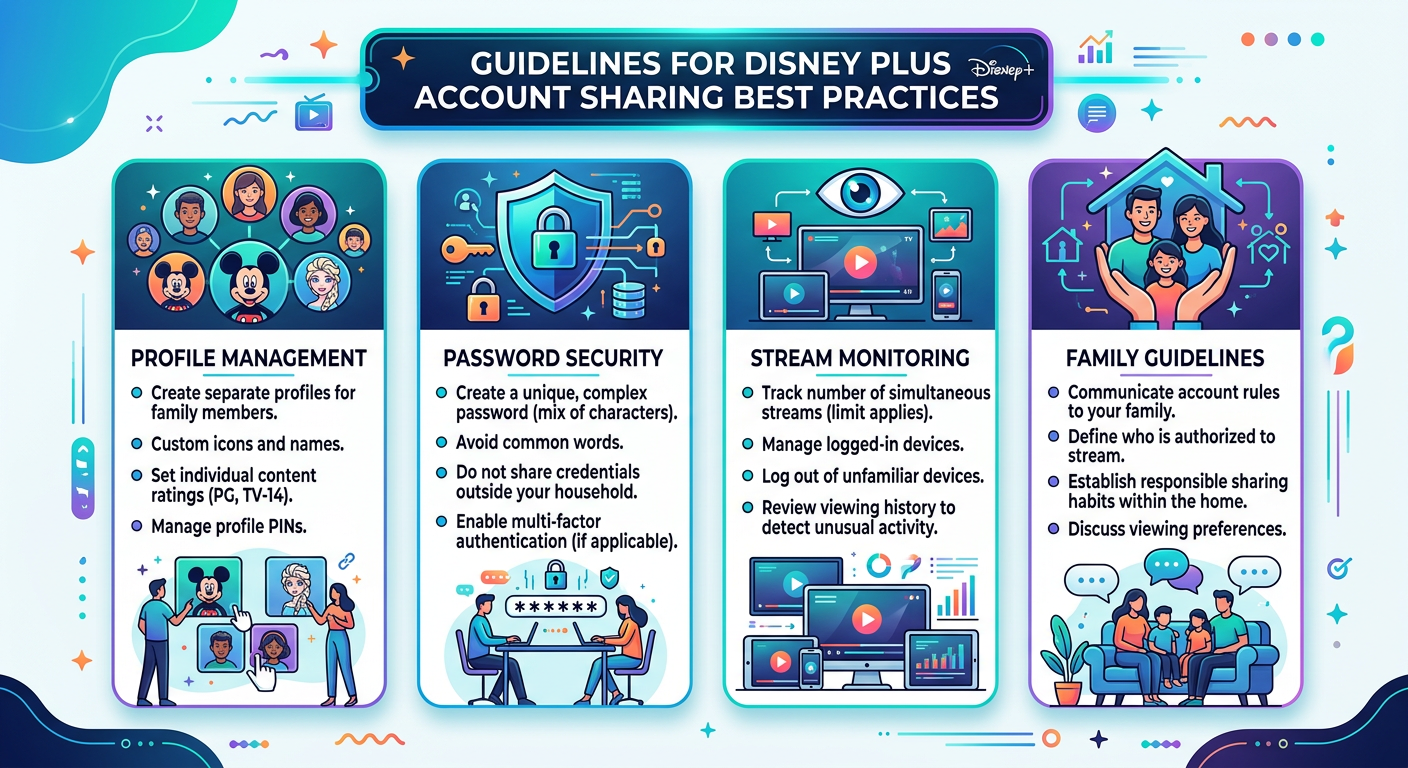
Before you add someone to Disney account, understand the platform’s sharing structure. Disney Plus supports seven unique profiles under one subscription. Each profile operates independently with separate watchlists and preferences. The main account holder controls all profile management. You can add family members without sharing your login password. Each person gets their own PIN for parental controls. This setup maintains privacy while enabling convenient sharing. Disney Plus distinguishes between profiles and simultaneous streams. Seven profiles can exist on one account. However, only four devices can stream simultaneously. This limitation rarely affects typical household usage patterns. Account sharing works best within immediate households. Disney’s terms of service specify household members as authorized users. The platform uses location verification to ensure compliance. Keep sharing limited to people living at your primary address for the best experience. Learn more about Disney Plus subscription sharing to maximize your account benefits.Step-by-Step Process to Add Someone to Your Disney Account
The process to add someone to Disney account starts with logging into your primary account. Navigate to your profile icon in the top right corner. Select ‘Edit Profiles’ from the dropdown menu. This opens your profile management dashboard. Click the ‘Add Profile’ button to begin creating a new profile. Enter the person’s name in the designated field. Choose an avatar from Disney’s extensive character collection. Select age-appropriate content settings if adding a child’s profile. Kids profiles require additional setup steps. Toggle the ‘Kids Profile’ switch to enable content filtering. Set a four-digit PIN to prevent profile switching. This ensures children stay within age-appropriate content boundaries. Adult profiles offer full platform access. Skip the kids profile toggle for unrestricted viewing. Consider adding PINs to adult profiles for account security. This prevents unauthorized profile access or accidental deletion. Complete the setup by clicking ‘Save’ or ‘Done’. The new profile immediately appears on your account homepage. The person can now select their profile when logging in. Each profile maintains separate watch history and recommendations. For detailed account management, visit Disney Plus Help Center for official guidance.Managing Profile Settings When You Add Someone to Disney Account
After you add someone to Disney account, customize their profile settings. Access individual profile settings through the ‘Edit Profiles’ menu. Click the pencil icon on any profile to modify its configuration. Language preferences personalize each user’s experience. Select from over 20 supported languages for interface text. Audio and subtitle languages can differ from interface settings. This flexibility accommodates multilingual households perfectly. Content rating restrictions protect younger viewers. Set maximum content ratings for kids profiles. Options include TV-Y, TV-Y7, TV-G, and TV-PG. Movies follow similar rating structures with G, PG, and PG-13 limits. Autoplay settings control viewing behavior. Toggle autoplay for episodes and previews independently. Some users prefer manual episode selection. Others enjoy continuous viewing without interruption. Customize based on individual preferences. Profile icons add personal flair to accounts. Choose from hundreds of Disney, Pixar, Marvel, and Star Wars characters. Change avatars anytime through profile settings. This simple customization helps family members identify their profiles quickly.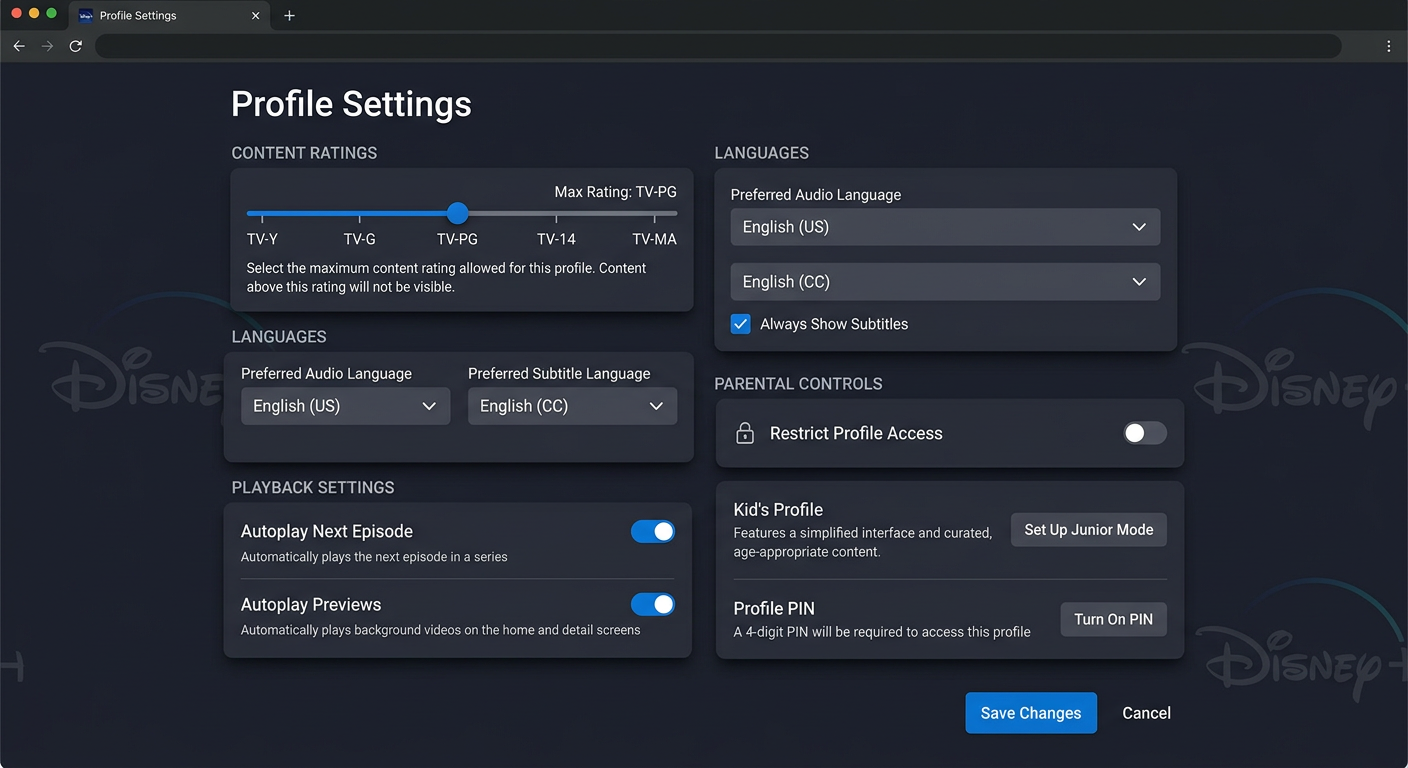
Troubleshooting When You Add Someone to Disney Account
Sometimes issues arise when you add someone to Disney account. Profile limits prevent creating more than seven profiles. If you reach this maximum, delete unused profiles before adding new ones. Navigate to ‘Edit Profiles’ and select the trash icon. Simultaneous stream limits cause playback errors. Disney Plus allows four concurrent streams per subscription. If someone can’t watch content, check active streams. Pause unused streams to free up bandwidth for other users. Profile switching problems usually involve cache issues. Clear your browser cache or app data to resolve glitches. Log out completely and log back in. This refreshes your profile list and resolves most switching problems. PIN-related lockouts frustrate users occasionally. Reset forgotten PINs through account settings. Select ‘Edit Profiles’ and choose the locked profile. Click ‘Change PIN’ and create a new four-digit code. Location verification sometimes blocks legitimate sharing. Disney uses IP addresses to confirm household membership. If traveling family members experience issues, have them wait until returning home. The system automatically resolves location conflicts within 30 days. Check The Verge’s Disney Plus coverage for the latest platform updates.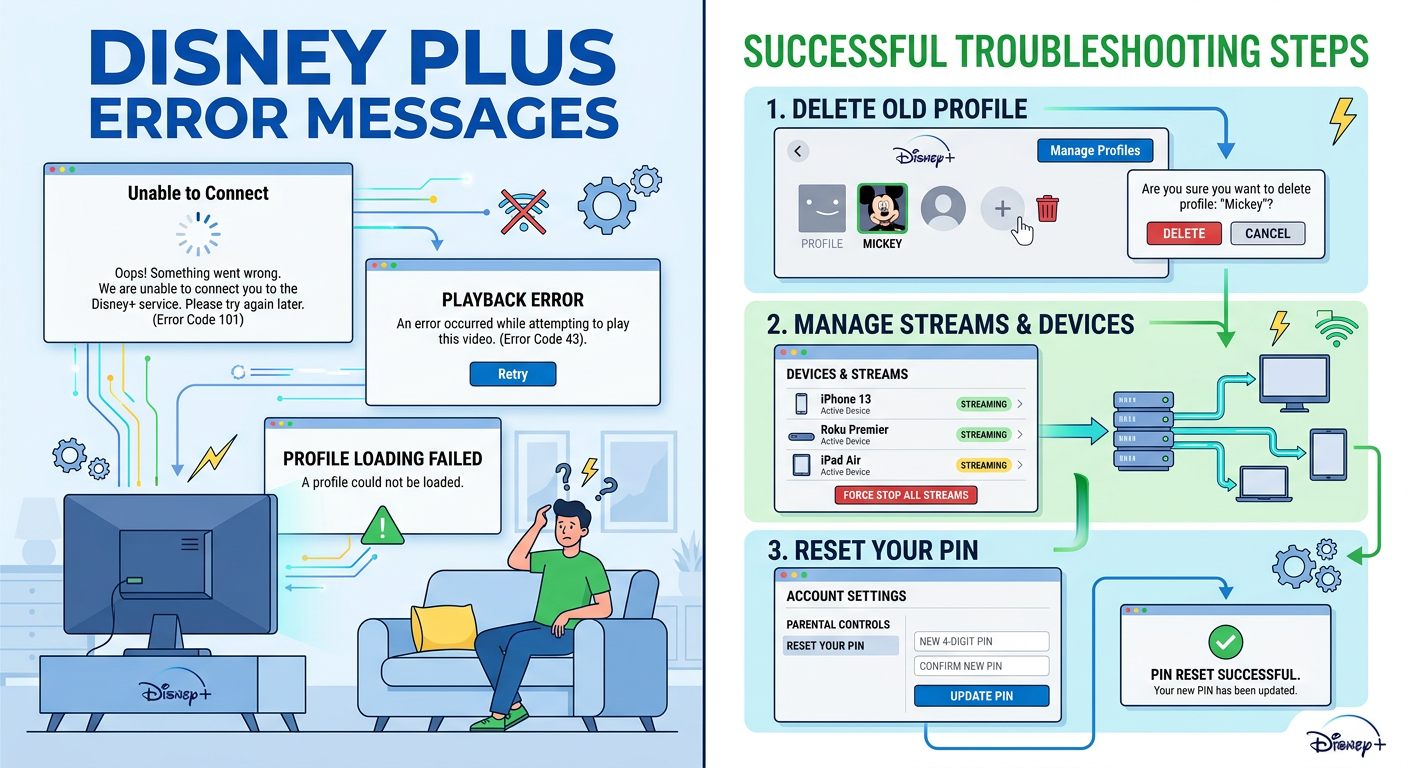
Best Practices After You Add Someone to Disney Account
Maximize your experience after you add someone to Disney account by following sharing best practices. Establish clear household guidelines about profile usage. Each person should use only their designated profile. This maintains accurate recommendations and watch history. Regularly audit your profile list for inactive users. Remove profiles for people who no longer need access. This frees up slots for current household members. Perform this audit every three to six months. Protect your main account with a strong password. Enable two-factor authentication if available through your email provider. Never share your primary login credentials. Only share profile access, not account-level passwords. Monitor simultaneous streams during peak usage times. Four concurrent streams accommodate most families comfortably. If conflicts arise frequently, create a family streaming schedule. Coordinate viewing times to avoid playback interruptions. Educate family members about content ratings and profile restrictions. Kids should understand why certain content is blocked. Adults should respect household viewing guidelines. Clear communication prevents frustration and account misuse. Discover how Disney Plus compares to other streaming services for comprehensive household entertainment.