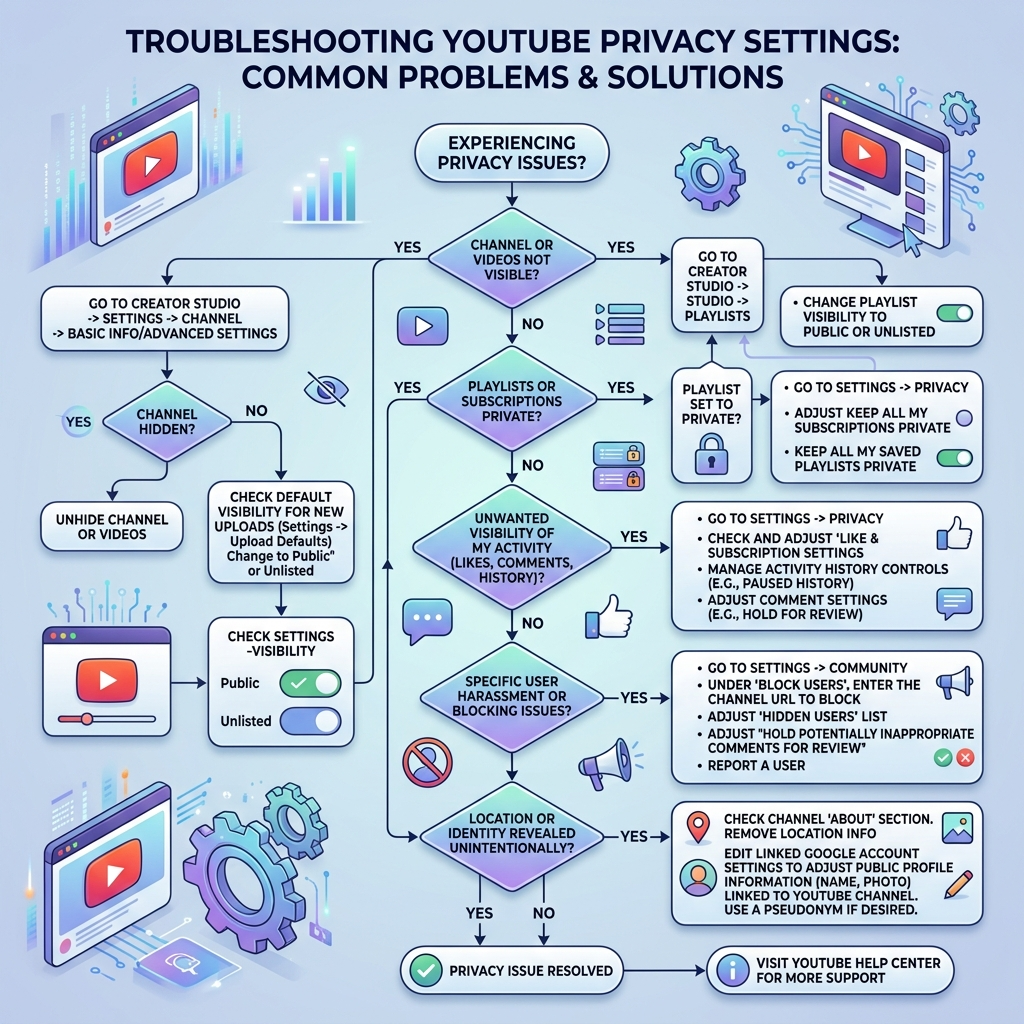

Why You Should Hide Subscriptions YouTube Privacy Settings
Privacy concerns drive most users to hide subscriptions YouTube lists. Your subscription choices reflect personal interests, entertainment preferences, and viewing habits. Many people share devices with family members or roommates. Public subscription lists can reveal sensitive information. Professional accounts need separation from personal viewing. YouTube defaults to public visibility for all subscriptions unless you change settings. Managing privacy settings takes just minutes. The platform offers granular control over what others see. You can hide your entire subscription list or make it visible only to you. This flexibility helps maintain boundaries between your public and private YouTube experience. Account security improves with proper privacy settings. Hidden subscriptions prevent unwanted attention or judgment. Your viewing choices remain personal when you configure settings correctly. YouTube’s privacy documentation explains these features in detail.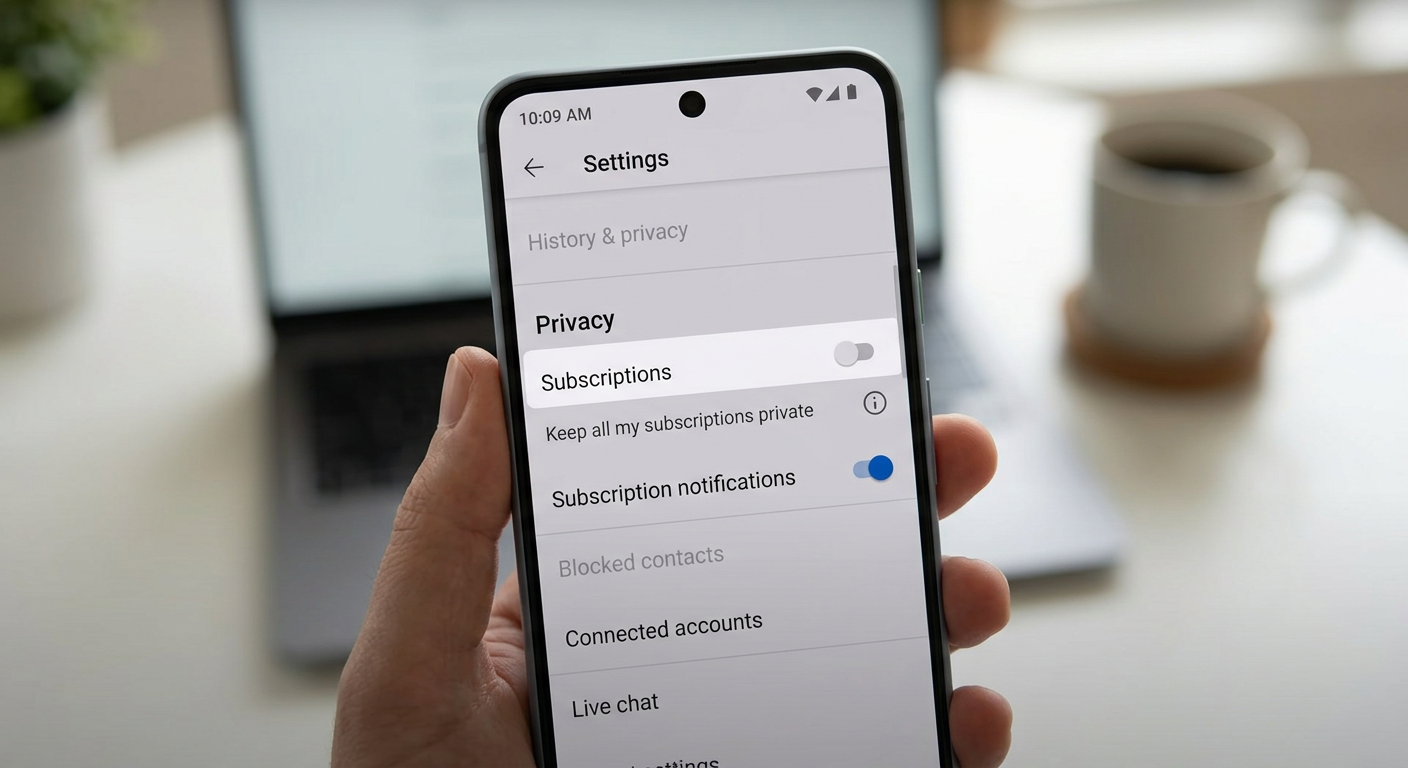
Step-by-Step Method to Hide Subscriptions YouTube Desktop
Desktop users find the process straightforward. Click your profile icon in the top-right corner. Select Settings from the dropdown menu. Navigate to Privacy settings in the left sidebar. Scroll down to locate subscription preferences. Find the checkbox labeled ‘Keep all my subscriptions private.’ Check this box to hide subscriptions YouTube automatically. The change takes effect immediately across all devices. Your subscription list becomes invisible to other users. Only you can see which channels you follow when logged into your account. Desktop settings sync with mobile devices automatically. You don’t need to configure settings separately on each device. YouTube remembers your privacy preferences permanently until you change them again. This synchronization ensures consistent privacy across your entire YouTube experience regardless of how you access the platform.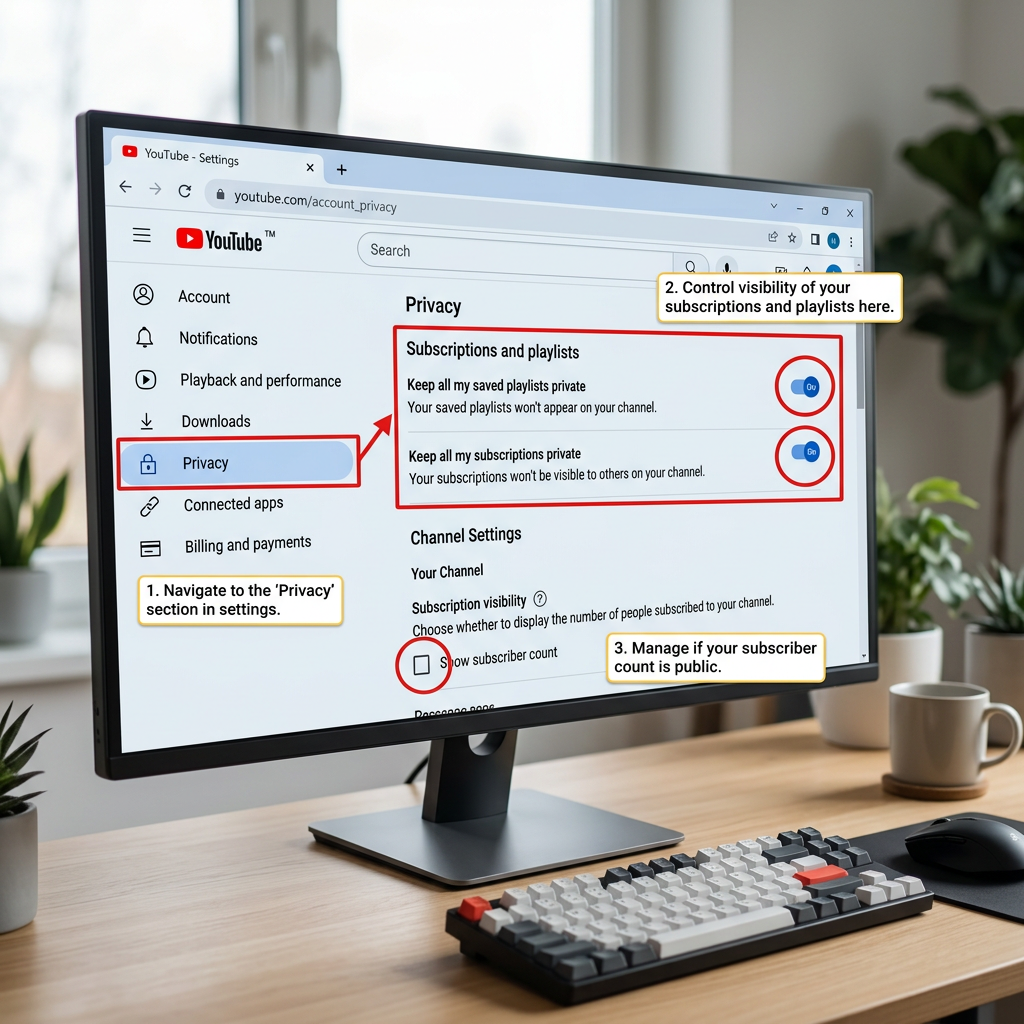
How to Hide Subscriptions YouTube Mobile App
Mobile users access privacy settings differently. Open the YouTube app on your device. Tap your profile picture in the top-right corner. Select Settings from the menu options. Tap Privacy to access subscription controls. Toggle the ‘Keep all my subscriptions private’ option to enable it. The mobile process mirrors desktop functionality. Settings apply immediately without requiring app restart. Your subscriptions remain hidden across all platforms once you enable this setting. Mobile privacy settings persist through app updates. You won’t need to reconfigure after installing new versions. The YouTube app maintains your privacy preferences automatically. Both iOS and Android versions offer identical privacy controls for subscription management.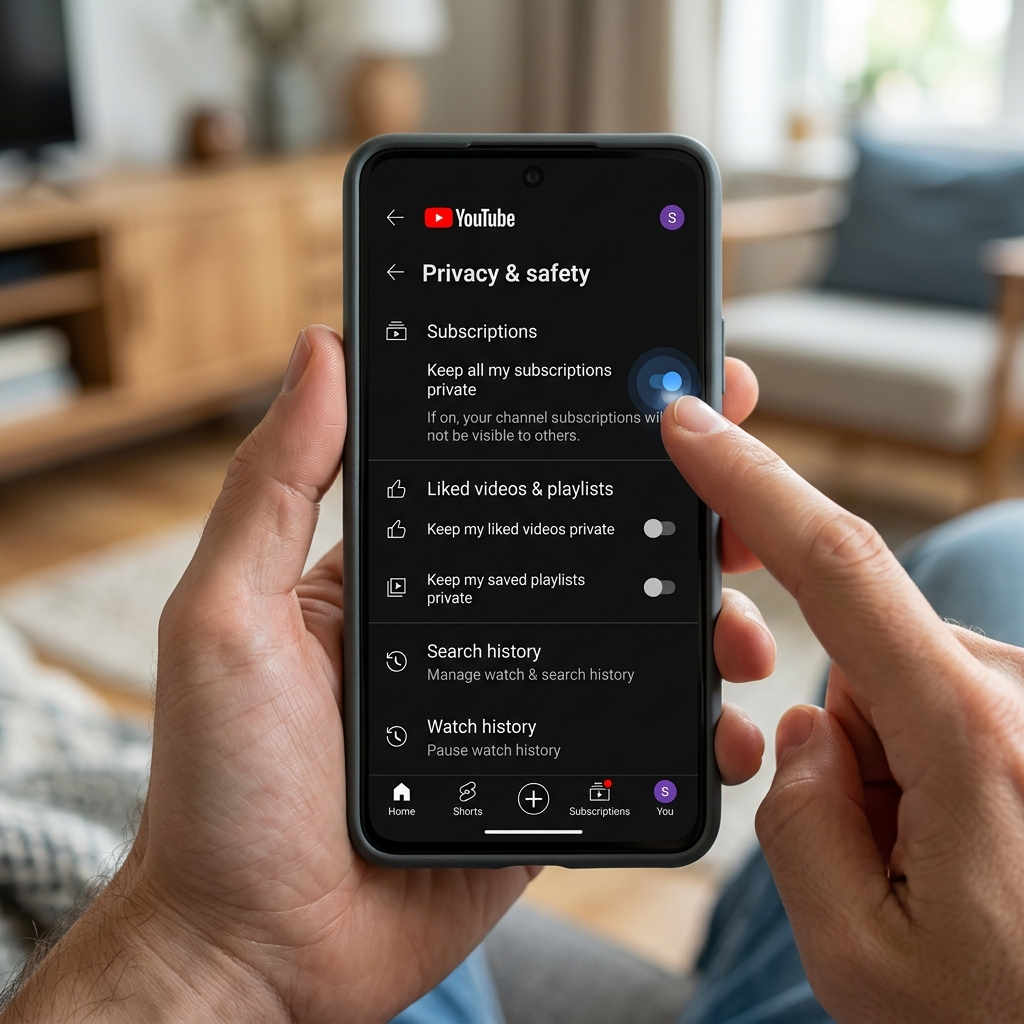
Advanced Tips to Hide Subscriptions YouTube Completely
Some users want additional privacy layers. Consider creating separate accounts for different content types. Professional accounts can remain completely independent from personal viewing. Private browsing modes offer temporary privacy. Incognito mode prevents subscription tracking during sessions. This approach works well for shared devices or public computers. Secondary channels provide organizational benefits. You can subscribe to different content types on separate channels. Each channel maintains independent subscription lists and privacy settings. This separation helps maintain clear boundaries between different aspects of your YouTube usage. Browser extensions add extra privacy features. Some tools automatically hide subscriptions YouTube displays on your channel page. Google’s official support covers additional privacy options. These advanced methods complement YouTube’s built-in privacy tools effectively.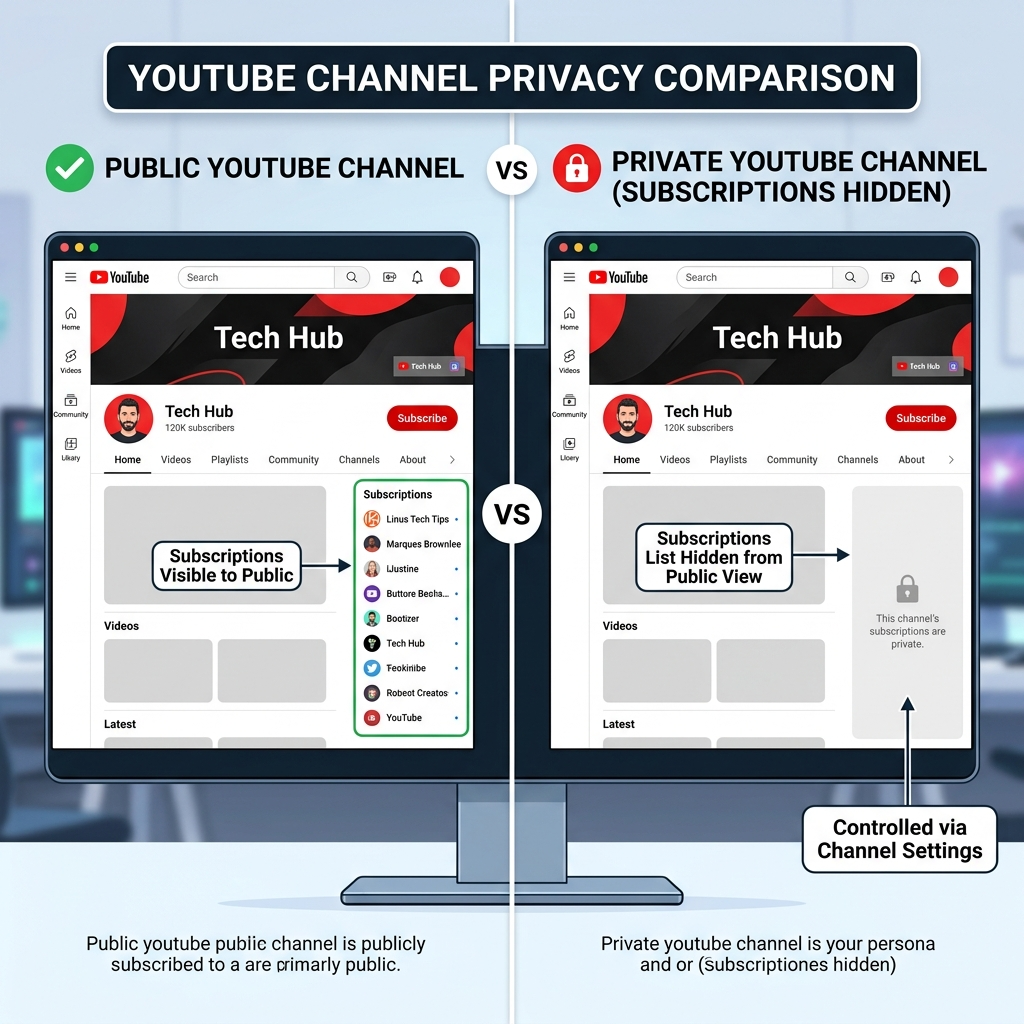
Common Issues When You Hide Subscriptions YouTube Settings
Settings occasionally revert after major updates. Check your privacy preferences monthly to ensure they remain active. YouTube typically maintains settings but verification prevents surprises. Some users report delayed synchronization across devices. Changes made on desktop may take minutes to appear on mobile. Logging out and back in usually resolves synchronization issues quickly. Third-party apps sometimes bypass privacy settings. Avoid granting unnecessary permissions to external services. Only use official YouTube apps and trusted browser extensions for account access. Shared accounts complicate privacy management. Each user should maintain separate accounts for optimal privacy control. Family sharing plans offer better solutions than single-account sharing. When multiple people need access to premium features, consider exploring subscription sharing options that maintain individual privacy while reducing costs.