
Why Disney Plus Keeps Asking for Code Verification
Disney Plus keeps asking for code authentication due to several technical triggers. The platform uses device linking to protect accounts from unauthorized access. Each new device requires verification through a unique code. Your device might lose its authentication token. This happens when you clear browser cache, update apps, or reset network settings. Disney Plus treats the device as new and requests verification again. Temporary server issues cause repeated code requests. Disney’s authentication servers occasionally experience connectivity problems. These glitches force the system to restart the verification process even for previously authorized devices. Account security settings trigger additional prompts. If Disney detects unusual login patterns or multiple simultaneous streams, it requires code verification as a protective measure. Sharing accounts outside your household increases these security checks significantly. Network configuration affects authentication persistence. VPN services, proxy servers, or frequently changing IP addresses signal potential security risks. The platform responds by requesting verification more frequently to ensure legitimate access. Learn more about streaming authentication troubleshooting for comprehensive solutions.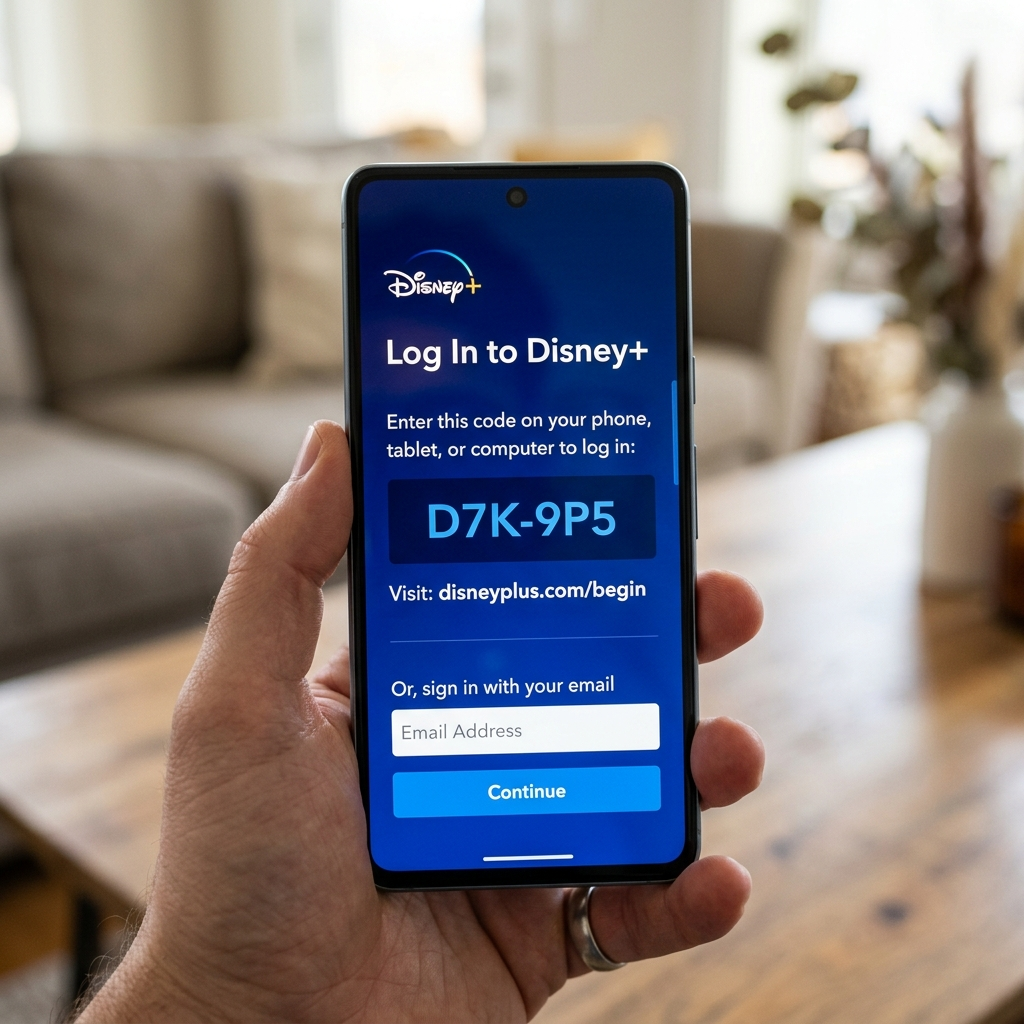
Clear Browser Cache and App Data to Stop Code Requests
Corrupted cache files cause Disney Plus keeps asking for code problems repeatedly. Your browser or app stores temporary authentication data. When this data becomes corrupted, the platform cannot recognize your previously verified device. Clearing browser cache removes corrupted tokens. Navigate to your browser settings and select “Clear browsing data.” Choose “Cached images and files” and “Cookies and other site data.” This forces Disney Plus to create fresh authentication records. Mobile app data clearing works differently. On iOS, uninstall and reinstall the Disney Plus app completely. Android users can go to Settings > Apps > Disney Plus > Storage > Clear Data. This removes all local authentication files. Smart TV cache requires specific steps. Most streaming devices have a “Clear cache” option in system settings. For Roku, press Home five times, then Up once, Rewind twice, and Fast Forward twice. Fire TV users should hold Select and Play buttons simultaneously for five seconds. After clearing cache, log in fresh. Enter your credentials as if setting up for the first time. The platform will request one final verification code. This creates new, uncorrupted authentication tokens that should persist correctly. According to Disney Plus official support, cache issues cause 40% of persistent verification problems.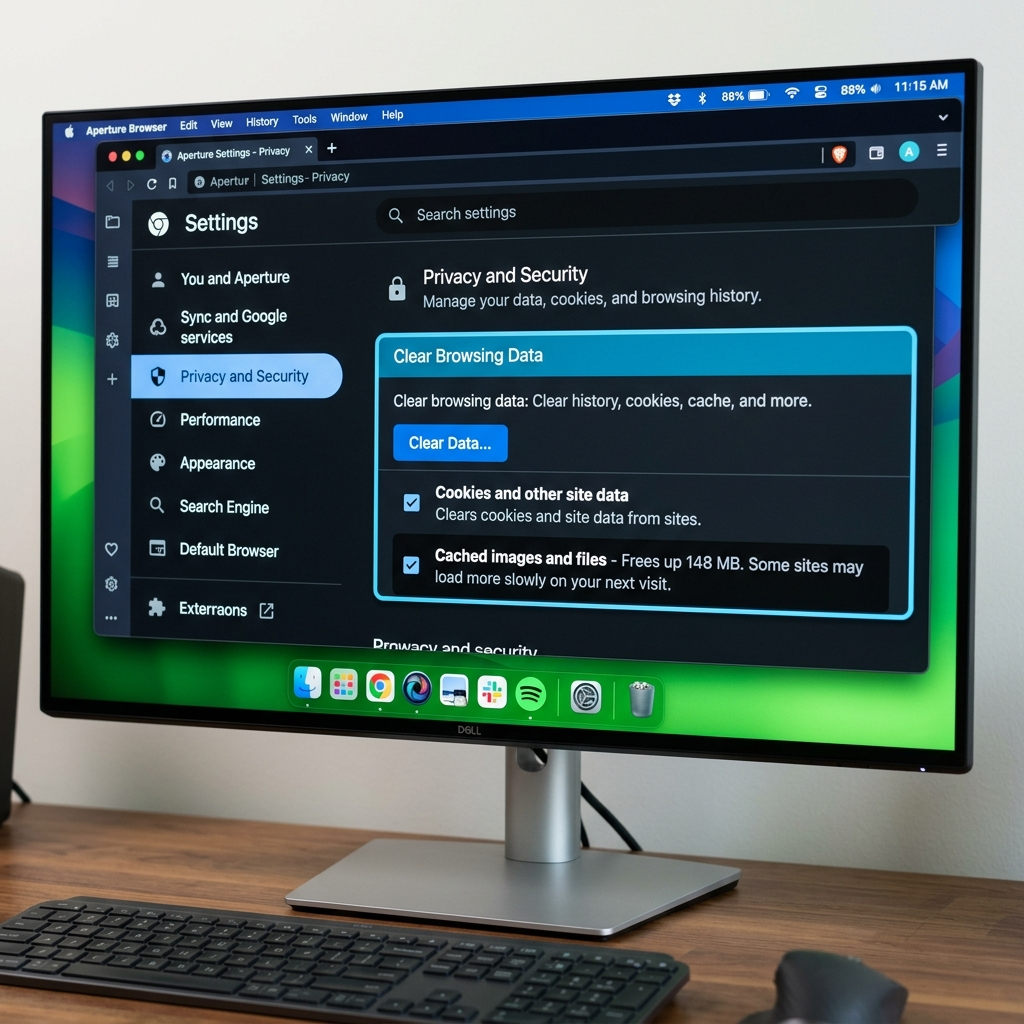
Update Disney Plus App to Fix Persistent Code Loops
Outdated app versions frequently cause Disney Plus keeps asking for code authentication failures. The streaming service regularly updates authentication protocols. Running old software creates compatibility issues with verification servers. Check your app version immediately. Open your device’s app store and search for Disney Plus. If an “Update” button appears instead of “Open,” your version is outdated. Install the latest release to access current authentication systems. Automatic updates don’t always work. Many users disable auto-updates to manage data usage or storage space. This prevents critical security patches from installing. Manual update checks should become part of your monthly routine. Beta versions create authentication conflicts. Some users join beta testing programs for early features. These experimental builds often have unstable authentication modules. Switch back to stable releases if verification issues persist. Device compatibility matters significantly. Older smart TVs and streaming sticks may not support the latest Disney Plus versions. The platform eventually phases out support for outdated hardware. Check Disney’s supported device list to confirm your equipment meets current requirements. After updating, restart your device completely. A full power cycle ensures the new version loads all authentication components properly. This simple step resolves residual verification problems in most cases.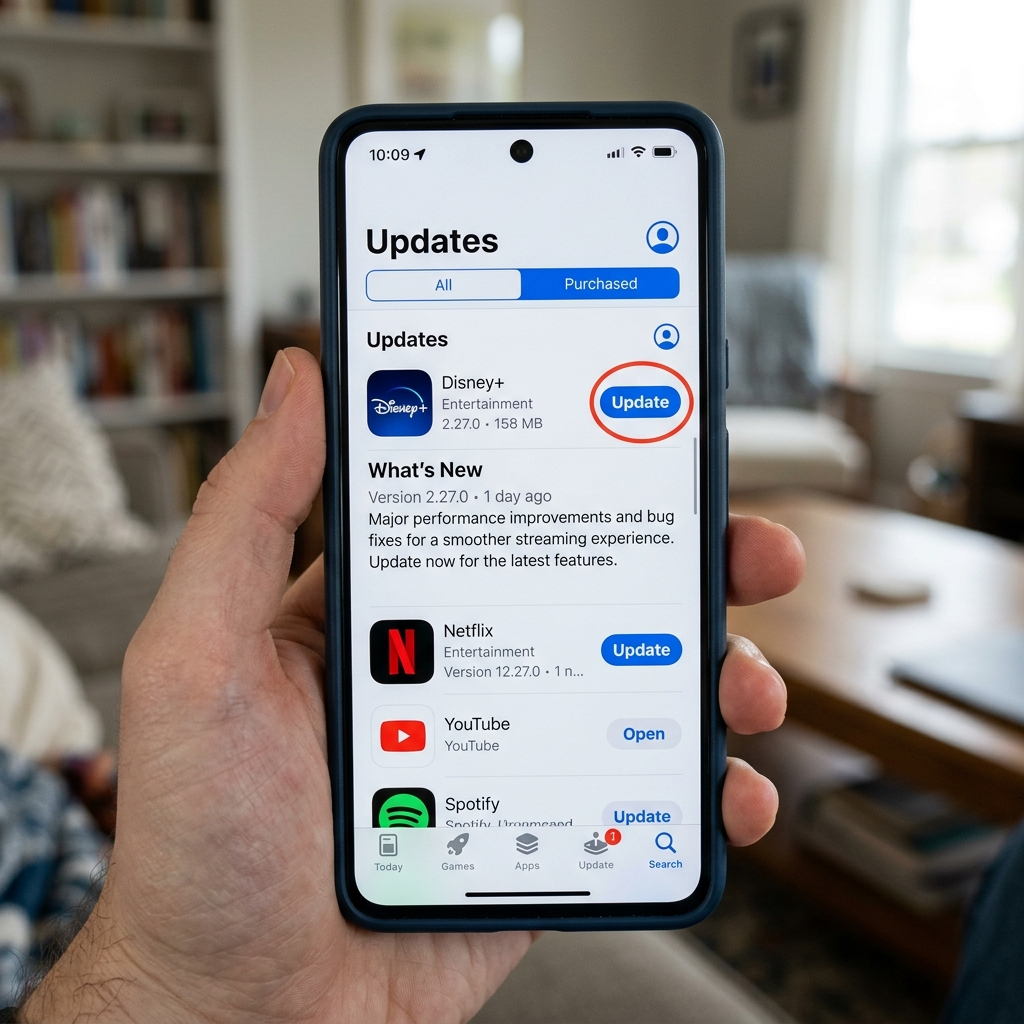
Disable VPN Services When Disney Plus Asks for Codes
VPN connections trigger Disney Plus keeps asking for code verification repeatedly. Virtual private networks mask your actual IP address and location. Disney’s security systems interpret this as suspicious activity requiring additional authentication. Disable VPN before launching Disney Plus. Most VPN services have simple on/off toggles in their apps. Turn off the VPN completely, then restart the Disney Plus application. This allows direct connection to authentication servers. Split tunneling offers a compromise solution. Some premium VPN services let you exclude specific apps from the VPN tunnel. Configure your VPN to allow Disney Plus direct internet access while protecting other traffic. Residential IP addresses work better. If you must use a VPN, choose servers with residential IP addresses rather than datacenter IPs. Streaming platforms trust residential addresses more because they appear like legitimate home connections. Consistent server selection reduces prompts. If VPN usage is necessary, connect to the same server location every time. Disney’s system may eventually recognize the pattern and require verification less frequently. Account restrictions vary by region. Disney Plus enforces geographic licensing agreements strictly. Using VPNs to access content from other countries violates terms of service and increases authentication challenges. Stick to your actual region for reliable access.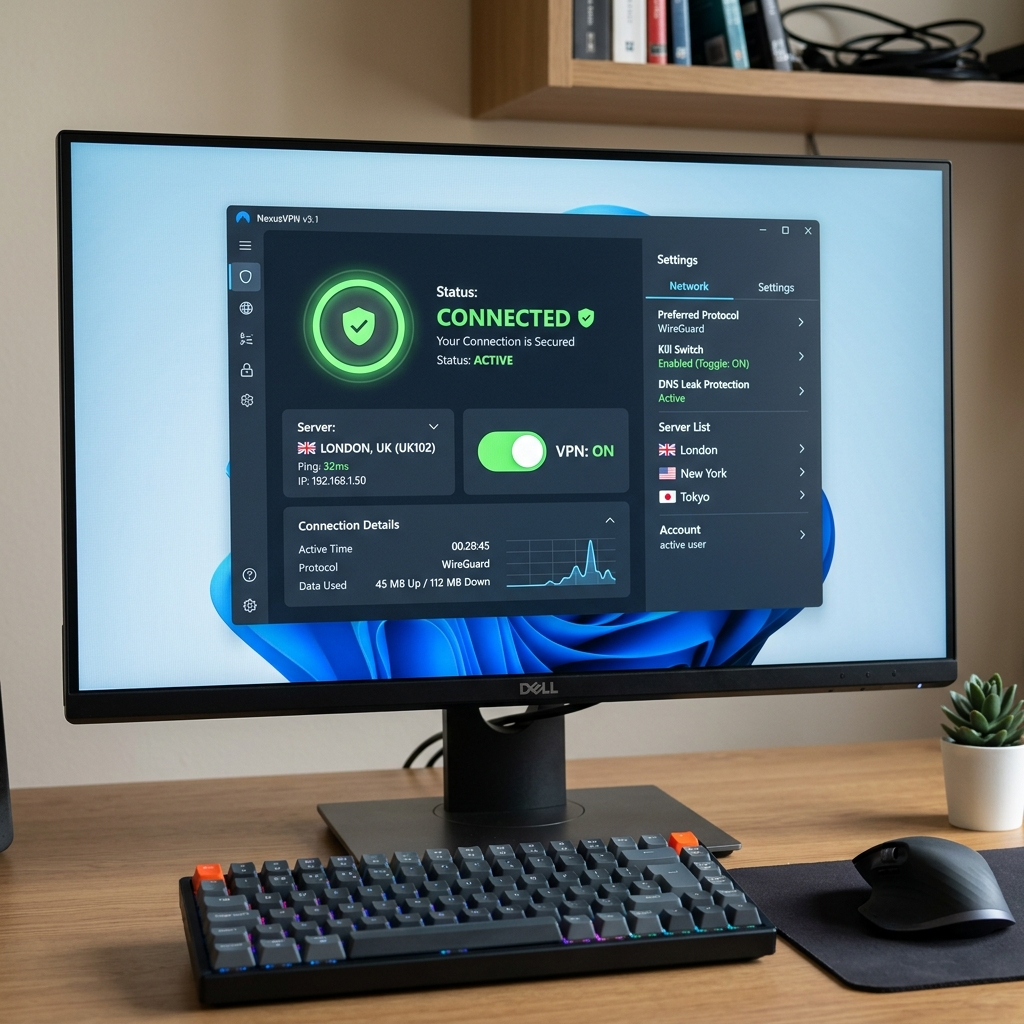
Reset Network Settings to Stop Disney Plus Code Requests
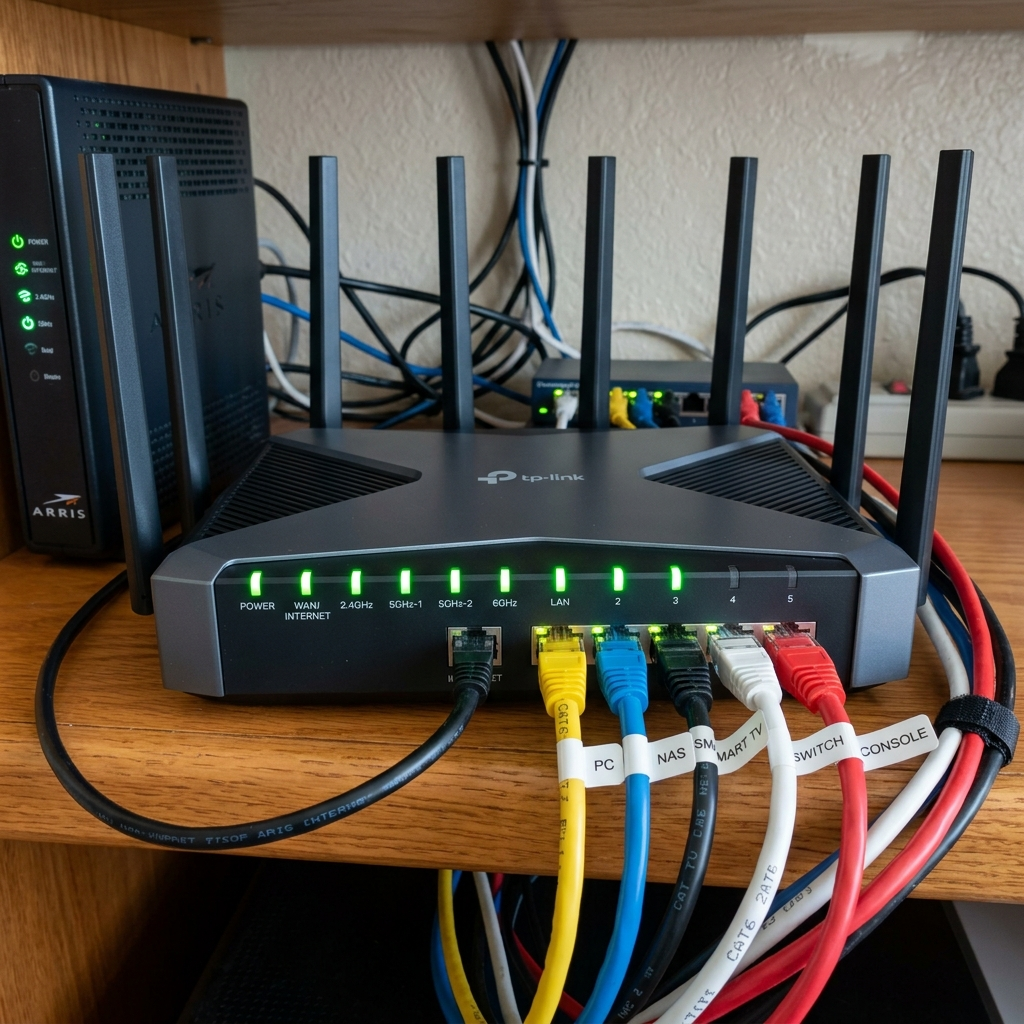
Network configuration problems cause Disney Plus keeps asking for code issues persistently. Your router stores device authentication data in its DHCP tables. Corrupted network records force Disney Plus to treat your device as unrecognized. Router restart clears temporary network glitches. Unplug your router completely for 30 seconds. This full power cycle resets connection tables and DNS caches. Plug back in and wait for all lights to stabilize before testing Disney Plus. DHCP reservation prevents IP address changes. When your streaming device receives different IP addresses, Disney Plus sees it as a new device. Configure your router to assign a static IP to your streaming hardware through DHCP reservation settings. DNS settings affect authentication servers. Some ISP-provided DNS servers have connectivity issues with Disney’s verification systems. Switch to public DNS like Google (8.8.8.8) or Cloudflare (1.1.1.1) in your device network settings. Device network reset works as last resort. On smart TVs and streaming devices, navigate to Settings > Network > Reset Network Settings. This clears all saved WiFi passwords and configurations. You’ll need to reconnect to your network afterward. Wired connections prove more stable. If possible, use Ethernet cables instead of WiFi for streaming devices. Wired connections maintain consistent authentication tokens better than wireless networks that experience intermittent signal issues.